
Next to each article’s creation date field on this blog, you’ll notice a “Last Modified” timestamp.
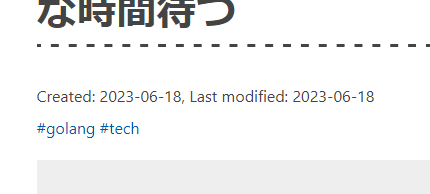
I’ve been wanting to display the last modified date for a long time, but kept failing and giving up repeatedly. Only recently did I finally figure out the root cause, so I’m documenting it here.
Hugo’s GitInfo Feature
First, for displaying the last modified date, we’ll use Hugo’s GitInfo feature.
This feature allows Hugo templates to access Git history information. Specifically, we’ll use GitInfo.AuthorDate.Format.
Last modified: <time>{{ .GitInfo.AuthorDate.Format "2006-01-02" }}</time>
This syntax will retrieve the last modified date from the Git commit history and display it for the file that originally generated the page. I build my site using GitHub Actions. When building locally, the above template works perfectly fine, but when I build via GitHub Actions, all pages would show the same last modified date.
Git History Information in GitHub Actions
When building with GitHub Actions, we use actions/checkout to clone the repository.
By default, this performs a shallow clone.
In other words, as shown in the image below, only the latest commit and related file information are retrieved, with all previous commits and information completely omitted.

Image source: Make the Most of Partial Clones and Shallow Clones - GitHub Blog
In this state, commands like git log will not function correctly.
Similarly, Hugo’s GitInfo feature will also not work properly.
Solution
When using actions/checkout, specify the fetch-depth option. By default, this is set to 1, which corresponds to --depth=1 in git commands.
Setting this to 0 will perform a full clone.
By specifying blob:none in the filter option, only history information will be retrieved without fetching any files from previous commits.
- uses: actions/checkout@v4
  with:
      fetch-depth: 0
      filter: blob:none
With this configuration, Hugo will be able to access the Git history information.